
Installation
System Requirements
- macOS 26 (Tahoe) or later
- Screen Recording permission (prompted on first launch)
Download & Install
- Download the latest
.dmgfrom the Releases page - Open the
.dmgfile and drag ZoomacIt.app to the Applications folder - Open ZoomacIt from Applications
Removing the Quarantine Flag
If you see the warning "Apple could not verify 'ZoomacIt' is free of malware that may harm your Mac or compromise your privacy", run the following command in Terminal to remove the quarantine flag:
bash
xattr -cr /Applications/ZoomacIt.appWARNING
Please review the source code and run at your own risk.
Granting Screen Recording Permission
On first launch, macOS will prompt you to grant Screen Recording permission. This is required for the Zoom feature to capture the screen.
- Click Open System Settings when prompted
- Toggle ZoomacIt on in Privacy & Security → Screen Recording
- Restart ZoomacIt if needed
TIP
Screen Recording is the only permission ZoomacIt requires. No Accessibility permission is needed.
Launching
ZoomacIt runs as a menu bar app — there is no Dock icon. After launching, you will see the ZoomacIt icon in your menu bar.
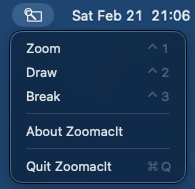
From here you can:
- Launch Zoom, Draw, or Break Timer from the menu
- Open Settings to customize hotkeys and preferences
- Or simply use the default hotkeys: ⌃1 (Zoom), ⌃2 (Draw), ⌃3 (Break Timer)